
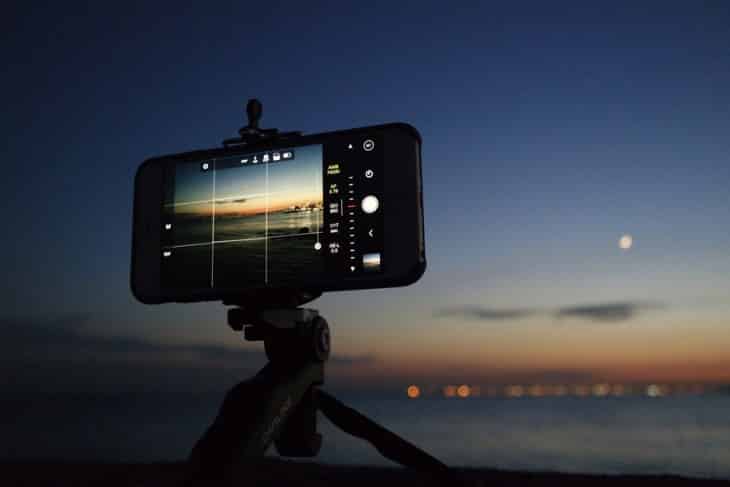
The iPhone is arguably the most popular camera in the world right now, and if there was ever any doubt, figures from Flickr, the photo blogging platform owned by Yahoo, put that to rest. According to Flickr, iPhone models account for 8 of the top 10 camera types used on the site, ahead of both point-and-shoot and DSLR cameras. A whopping 47 per cent of all Flickr users uploaded images from an Apple device to the community in 2016, with 8 of the top 10 camera types being iPhones, and the 6, 5s and 6s taking the top three spots.
Apple has put together some tips for iPhone 7 and iPhone 7 Plus photography, which are handy if you’re getting to grips with Portrait Mode, Zoom and other new camera features. Here’s a look at those tips for iPhone 7 photography.
- Tap and hold anywhere on the scene to lock AE/AF, then slide your finger up or down to nudge exposure up or down until you’ve got the perfect light in your shot.
- With the dual 12MP cameras on iPhone 7 Plus, you now get optical zoom for video at 2x, plus improved digital zoom up to 10x, so you can still get that perfect shot even if you’re further away than you’d like.
- With 4K video, your recordings will look remarkably crisp and colourful, thanks to optical image stabilisation and the new f/1.8 aperture setting. To record 4K video, go to Settings, then Photos & Camera, then Record Video, and select 4K. Once selected, you’ll see a 4K badge appear in the Camera app while recording. You can also shoot 1080p at either 30 or 60fps.
- Whether you’re standing still or on the move, Time-lapse videos will look smoother than ever. On iPhone 7 Plus, you can also capture Time-lapse footage at 1x or 2x zoom to get closer to the action.
- Shoot video in landscape for the best results.
- Adjust your camera settings to enable “Record Video at 60 FPS” for 1080p HD video.
- Lock Auto Exposure and Auto Focus by pressing and holding anywhere on the display.
- Want to take a photo while recording video? Just tap the white circle to the left of the record button.